Blog / Status pages & incidents
How to Create a Status Page (Step by Step, With Templates)
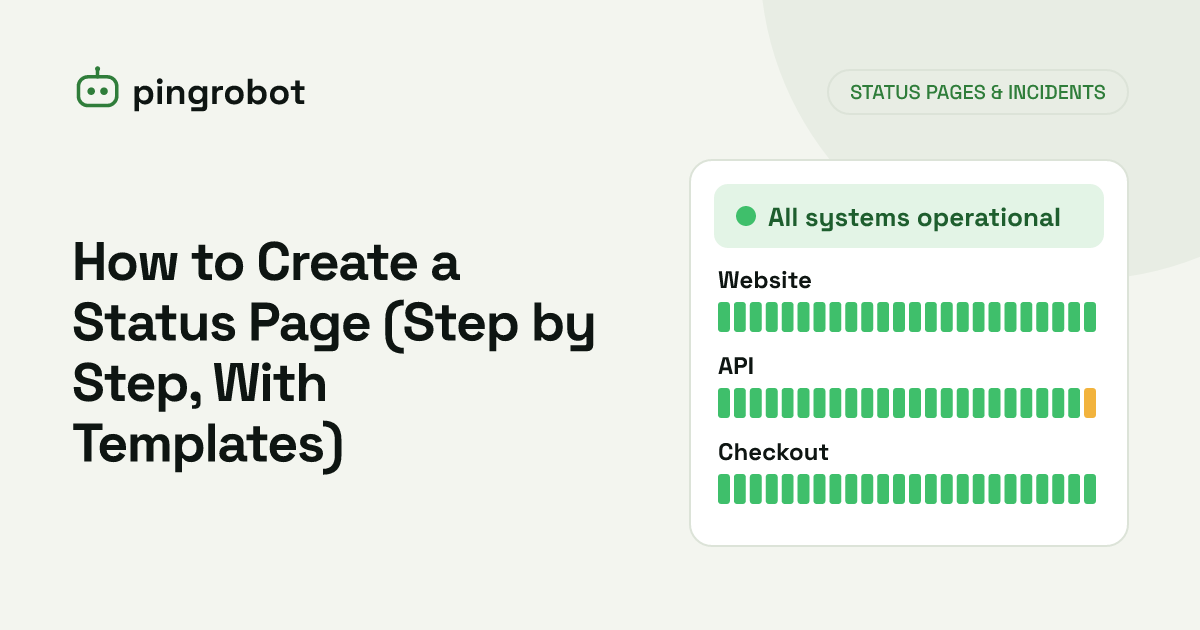
To create a status page, list the services your customers care about, connect each one to an uptime monitor, publish the page on infrastructure separate from your product, and link to it from your site and support channels. During incidents, post short, timestamped updates until the issue is resolved.
A status page is a public web page that shows whether your services are working right now and lists past incidents. To create one: decide which components to show, connect each to an automated uptime monitor, host the page somewhere independent of your product, and link to it from your website, app and support channels. Then commit to posting clear updates whenever something breaks. The automation keeps the "is it up?" answer honest; the written updates are what customers actually read during an outage.
Why a status page is worth having
- Fewer duplicate support tickets. When customers can see that you know about a problem, many of them will not email to report it.
- Trust. A visible incident history, including the bad days, shows you take reliability seriously.
- A single source of truth. Support, sales and account managers can link to one page instead of improvising answers.
- Clarity for "is it just me?" If the page shows everything green, the customer knows to look at their own network or account.
Step 1: decide what to show
Customers think in terms of features, not servers. Group your monitors into components that match how people use the product.
| Component on the page | Monitors behind it |
|---|---|
| Website | Homepage HTTPS check |
| Web app | Login page with a keyword check |
| API | /health endpoint |
| Email delivery | SMTP submission port check |
| Background processing | Heartbeat from the queue worker |
Guidelines:
- Keep it short. Five to ten components are easier to read than forty.
- Use names your customers recognize. "Checkout" is better than "payments-svc-eu-2".
- Do not expose internal hostnames, IP addresses or database ports.
- Agencies can create one page per client, or one page grouping each client's sites.
Step 2: connect real monitoring
A status page that someone has to update by hand will be out of date when it matters most. Back every component with an automated check:
- HTTP(S) monitors for websites and APIs.
- Keyword monitors for pages that can return 200 while broken.
- TCP port monitors for mail, database proxies or game servers.
- Heartbeat monitors for background jobs whose failure customers feel, such as report generation.
Use confirmation from a second location before marking something down, so a brief network blip does not turn the page red.
Step 3: host it independently
The page must stay reachable when your product is not. That means:
- Not on the same server, cluster or hosting account as the product.
- Not dependent on your main database or authentication system.
- Ideally on a different provider, so a single provider outage does not take out both.
A hosted status page from your monitoring provider meets these requirements by default. If you use a subdomain such as status.example.com, keep in mind that it still depends on your DNS provider, so use a reliable one.
Step 4: link to it everywhere
A status page nobody can find does not reduce tickets. Add links in:
- The website footer
- The app's help menu and error pages
- Your support center or knowledge base
- Auto-replies from your support inbox during incidents
- Your API documentation
Step 5: write incident updates people understand
Automated checks show that something is down. Humans have to explain what it means for the customer. A widely used convention moves through four stages.
Investigating
We are seeing errors when customers try to log in. We are investigating and will post an update within 30 minutes.
Identified
The login errors are caused by a failed database update. We are rolling it back. Existing sessions are not affected.
Monitoring
The rollback is complete and logins are working again. We are monitoring to make sure the fix holds.
Resolved
Logins were unavailable for some customers between 14:05 and 14:40 UTC. The cause was a database change that we have reverted. We are adding a check to prevent this from happening again.
Writing tips:
- Lead with impact. What can customers not do right now?
- Give times in UTC or state the time zone explicitly.
- Promise the next update and keep that promise, even if the update is "still working on it".
- Avoid blame and jargon. "A third-party provider" is fine; naming and blaming a vendor is usually not helpful.
- Do not speculate. Only state causes you have confirmed.
Step 6: announce planned work
If you take services offline for upgrades, post a notice in advance with the start time, expected duration and what will be affected. Do this wherever your users already look, such as the status page itself, a banner in the app or an email, depending on what your tooling supports. Planned work that surprises customers feels the same to them as an outage.
Step 7: review the history
Once a month, look at the incident list:
- Which component failed most often?
- How long did it take from the first failed check to the first public update?
- Were any incidents noticed by customers before the monitors caught them? If so, add a check.
This turns the status page from a communication tool into a reliability tool. If you publish an uptime figure, make sure you understand how it is calculated; see uptime percentage explained.
Launch checklist
- Components named in customer language, five to ten of them
- Every component backed by an automated monitor
- Page hosted separately from the product
- Linked from footer, app help menu, support center and docs
- Incident templates saved for the four stages
- One person responsible for posting updates during each incident
- Test: pause or break a non-critical monitor and confirm the page reflects it
PingRobot includes public status pages built from your existing monitors, so the page updates as soon as a confirmed failure is detected. To set up the monitoring side first, read how to monitor website uptime for free.
Start monitoring free — 10 monitors, no credit card.
Frequently asked questions
Should a status page be hosted on my own server?
No. If it shares infrastructure with your product, it goes down at the same moment customers need it. Use a hosted status page or at least a different provider and region.
Should a status page be public or private?
Public for customer-facing products, because it reduces support load and builds trust. Internal tools can use a private page for staff only.
How often should I update the status page during an incident?
Post the first update as soon as the problem is confirmed, then every 30 to 60 minutes while it lasts, even if nothing has changed, and once more when it is resolved.
Do I need a status page for a small website?
Not always. It pays off once customers depend on your service to do their work, such as a SaaS app, an API or a booking system, or when an agency wants to give clients a single place to check.