Blog / Status pages & incidents
Status Page Examples: What Good Ones Have in Common
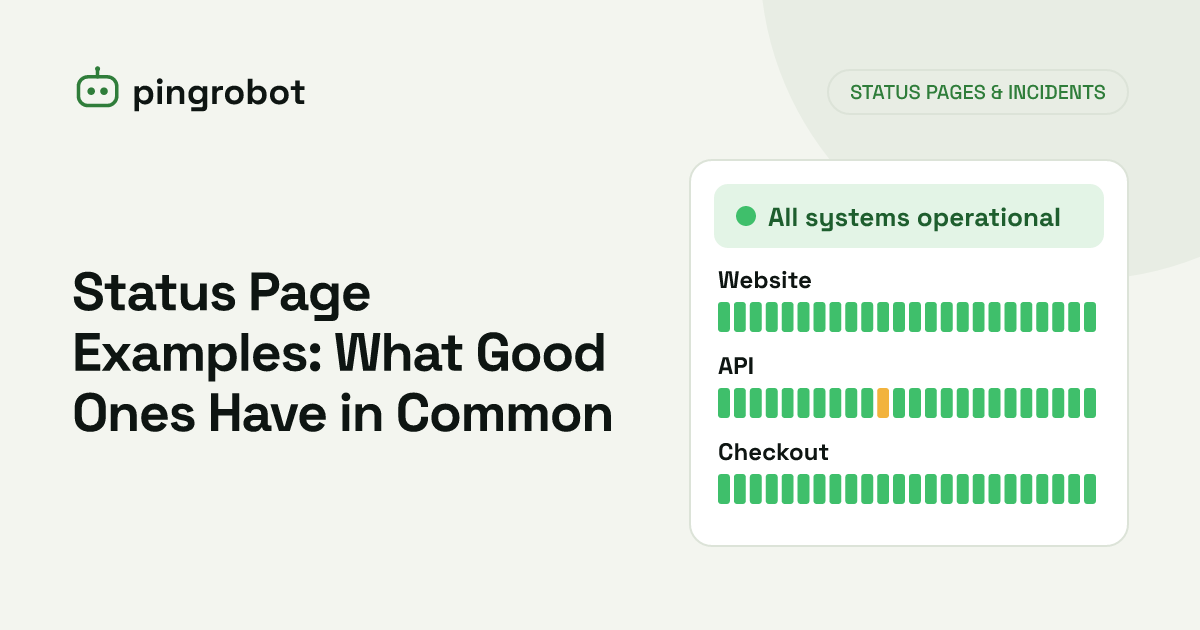
Good status pages share a handful of patterns. They open with one overall status line, list a short set of components named in customer terms, put any active incident at the top with the latest update first, show 90 days of history per component, announce maintenance in advance, let people subscribe, and timestamp every update with an explicit time zone. The wording is plain and specific about impact.
Good status pages look different, but they tend to share the same patterns. They open with a single line that answers "is it working?", list a short set of components named the way customers think about the product, put any active incident at the very top with the newest update first, show roughly 90 days of history per component, announce maintenance before it happens, offer a way to subscribe, and stamp every update with a time and a time zone. The writing is short and says who is affected. Everything else is decoration.
Rather than reproduce any company's page, this article describes the patterns you will see if you browse the public status pages of large cloud providers, developer platforms, payment companies and SaaS tools, and explains why each one works. Most of these pages are linked from the footer of the product's website, usually as "Status".
1. One overall status line at the top
Almost every well-run status page starts with a banner: "All systems operational", "Some systems are experiencing issues", "Major outage". It is the first thing a worried visitor reads and, for most of them, the only thing.
What makes it work:
- It summarizes, it does not explain. Details belong in the incident below.
- It changes color with severity. Green, yellow, orange and red are common, but the text must carry the meaning on its own for people who cannot distinguish colors.
- It is backed by automation. A banner that only changes when someone remembers to update it will be green during the first minutes of an outage, which is when people check it.
2. A short component list in customer language
Below the banner sits the list of components, each with its own status. The best lists describe what users do, not how the system is built: "Login", "Dashboard", "API", "Checkout", "Email delivery", "Webhooks". Visitors should be able to find the thing they are worried about without knowing your architecture.
Patterns that scale:
- Five to ten components for most products.
- Groups for larger ones, by product line or by region, collapsed by default.
- A short description on hover or under the name for anything ambiguous.
- No internal names, hostnames or IP addresses.
For examples of component lists by business type, see what a status page is and what to put on it.
3. History bars per component
A row of small bars, one per day, has become the standard way to show recent reliability. Each bar is colored by the worst status that day, and hovering or tapping a bar shows what happened. Ninety days is the most common window.
Why this pattern is so widespread:
- It shows patterns at a glance. A single bad day and a bad month look very different.
- It is honest by default. Red bars stay visible after the incident is closed.
- It pairs naturally with a percentage, such as 99.95% over 90 days, for readers who want a number. The arithmetic behind those numbers is in uptime percentage explained.
The bars only mean something if they come from real checks. A history that is always green while customers complain on social media does more damage than having no page.
4. The current incident on top
When something is wrong, good pages move the incident above everything else. The title states the impact ("Elevated error rates for API requests in Europe"), the current stage is labeled (investigating, identified, monitoring, resolved), and updates are listed newest first so the latest information is the first thing read.
Each update tends to answer three questions:
- What is affected, in user terms?
- What are we doing about it?
- When will we post the next update?
That last point matters more than it seems. "Next update by 14:30 UTC" stops people refreshing the page every minute, and keeping the promise builds credibility for the next incident. Ready-to-use wording for each stage is in the incident communication templates.
5. Maintenance announced in advance
Planned work is listed separately from incidents, with a start time, an expected end time, the components affected and the expected impact ("the dashboard will be read-only for up to 30 minutes"). Strong pages announce it days ahead, show it on the page as "upcoming", and switch the affected components to an "under maintenance" state during the window, so planned downtime is not mistaken for an outage.
Behind the scenes, the same window should silence alerts for those components so the on-call person is not paged for work that was scheduled.
6. A way to subscribe
Most mature status pages have a "Subscribe to updates" button offering one or more channels, such as email, RSS or Atom feeds, chat integrations or webhooks. Subscriptions turn the page from something people have to remember to check into something that tells them. During a long incident, that reduces the number of people refreshing the page and opening support tickets.
Good subscription flows let people choose components, so a customer who only uses the API is not notified about the mobile app, and every message includes a one-click unsubscribe link.
7. Timestamps with a time zone
Every update on a good status page carries a time and a time zone, commonly UTC, sometimes converted to the visitor's local time with the zone shown. "10:42" alone is ambiguous for a global audience; "10:42 UTC" is not. Resolved incidents usually summarize the full window ("between 09:52 and 10:41 UTC"), which is also what customers need to work out whether an SLA was affected.
8. Plain, specific language
The pages people trust read like a colleague explaining what is going on:
- "Some card payments are failing. Other payment methods work." rather than "We are experiencing issues."
- "No data was lost." when that is true and confirmed.
- No speculation about causes until they are known, and no blaming a vendor while the incident is still open.
Short sentences and concrete scope are easier to read on a phone during a stressful moment, which is when most people read a status page.
9. Hosted somewhere else, on a memorable address
Good status pages stay up during the outages they report, because they are hosted separately from the product. Most live on an easy-to-guess subdomain, such as status. followed by the company's domain. Setting that up takes one DNS record; see how to put your status page on your own domain.
10. Linked from the places people look
A status page that nobody can find does not reduce support load. Common placements:
- The website footer.
- The help center and API documentation.
- In-app error pages and the help menu.
- Automatic replies from the support inbox during an incident.
- A pinned post or profile link on social accounts.
What good pages leave out
The patterns above are as much about restraint as features:
- No internal dashboards, graphs of CPU usage or lists of servers.
- No marketing copy.
- No dozens of components nobody understands.
- No deleted incidents.
A quick checklist
Use this to review your own page:
- One overall status line, accurate within minutes of a real failure.
- Five to ten components in customer language.
- History bars covering at least 90 days.
- Active incidents first, newest update first, next update time stated.
- Maintenance announced ahead with start, end and impact.
- Subscription by at least one channel.
- Every timestamp has a time zone.
- Hosted separately from the product, on your own subdomain.
- Linked from the footer, docs and support replies.
PingRobot's public status pages are built from your monitors, so components change state when a check confirms a failure, and you post incident and maintenance announcements on the same page; on Pro it can live on your own domain with email subscribers. Whatever tool you use, the checklist above is what makes the difference.
Start monitoring free — 10 monitors, no credit card.
Frequently asked questions
What should a status page show when everything is working?
A clear all-clear line, the list of components with their current status, recent history bars and any upcoming maintenance. A quiet page is still useful, because it confirms to a visitor that a problem is probably on their side.
How many components should a status page list?
Few enough to scan in a few seconds, typically five to ten for a small or medium product. Large platforms with dozens of services group them by product or region and let visitors expand each group.
Should incident history stay on the status page forever?
Keep at least the period your history bars cover, commonly 90 days, and ideally a longer archive. Removing old incidents makes the page look better than the service was, which undermines trust once someone notices.
Is it better to show uptime percentages or just colored bars?
Many pages show both. Bars make patterns visible at a glance, such as a bad week, while a percentage gives a single number to compare against an SLA. If you show a percentage, be clear about the period and what counts as downtime.