How to Monitor a WordPress Site (Uptime, wp-cron, Login Page)
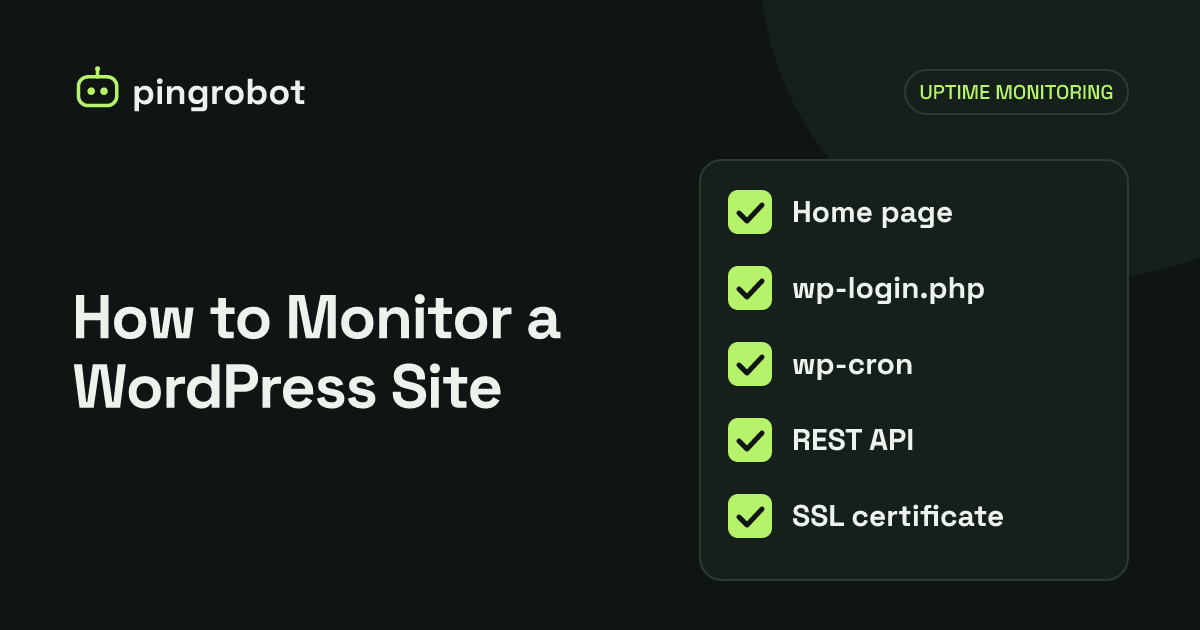
To monitor a WordPress site, check the home page over HTTPS, add a keyword check for text your theme only renders when the database works, monitor wp-login.php and the /wp-json/ REST API, and move wp-cron to a real system cron job that pings a heartbeat URL after each run. Together these catch the common WordPress failures that a plain status check misses.
To monitor a WordPress site, set up five checks from outside your hosting: an HTTPS check on the home page, a keyword check for text that only appears when the theme loads content from the database, a check on the login page, a check on the REST API at /wp-json/, and a heartbeat monitor for scheduled tasks after moving wp-cron to a real system cron job. A home page check alone misses many WordPress failures, because WordPress and its caching layers can return a page that looks fine to a status check while the site is broken.
Why WordPress needs more than a status check
A typical WordPress site has several moving parts: the web server, PHP, a MySQL or MariaDB database, the theme, a dozen or more plugins, often a page cache, and sometimes a CDN. Each can fail independently, and several of those failures do not produce an obvious HTTP error:
- A page cache keeps serving the home page while PHP or the database is down.
- A plugin conflict breaks one template, such as product pages, while the home page still loads.
- A hosting suspension shows a provider page, sometimes with status 200.
- Injected spam after a hack changes the content but not the status code.
That is why the checks below test different layers.
What to monitor
| Check | URL | Monitor type | What it catches |
|---|---|---|---|
| Home page | https://example.com/ |
HTTP(S) | Server down, DNS, TLS, 5xx errors |
| Content keyword | A key page, such as /shop/ |
Keyword | Database errors, broken templates, defacement |
| Login page | https://example.com/wp-login.php |
Keyword | PHP failures behind a cache |
| REST API | https://example.com/wp-json/ |
Keyword | PHP and routing failures, blocked API |
| Scheduled tasks | Heartbeat URL | Heartbeat | wp-cron no longer running |
1. Home page over HTTPS
Start with the obvious one: a check on the exact URL visitors use, including https:// and the correct www or non-www version. If the home page redirects, monitor the final URL so a broken redirect chain does not hide behind a 301.
2. A keyword on a real page element
Choose text that WordPress only outputs when it successfully read the database, and avoid text that is hard-coded in the theme header. Good candidates:
- The title of a recent post shown in a "latest posts" list (update it when the list changes, or pick a permanent post)
- The name of a product category on a WooCommerce shop page
- A footer menu item label, since menus are stored in the database
Look at the raw HTML first, because keyword checks read what the server sends, not what the browser renders after JavaScript runs:
curl -s https://example.com/shop/ | grep -o 'Garden Tools'
If grep prints the text, the monitor will see it too. For more on choosing keywords, see keyword monitoring.
3. The login page
Login pages are almost never served from a page cache, so a check on wp-login.php reaches PHP and WordPress itself even when the cached home page looks healthy. Use a keyword check for something in the form markup. The standard login form contains an input with the id user_login:
curl -s https://example.com/wp-login.php | grep -o 'user_login'
If a security plugin moves the login page to a custom path, monitor that path instead.
4. The REST API
WordPress exposes a REST API at /wp-json/. The index returns JSON that includes a namespaces list, which makes a reliable keyword:
curl -s https://example.com/wp-json/ | grep -o '"namespaces"'
This checks that PHP runs, that WordPress boots and that URL rewriting works. It matters if your site has a headless front end, a mobile app or forms that post to the API. Two caveats:
- Sites without "pretty" permalinks serve the API at
/?rest_route=/instead of/wp-json/. - Some security plugins block the REST API for anonymous visitors and return 401. In that case, monitor a public route your site really uses, or skip this check.
5. wp-cron with a heartbeat
By default, WP-Cron does not run on a schedule. WordPress checks for due tasks when someone visits the site, so on a low-traffic site, scheduled posts, backups, WooCommerce emails and plugin cleanups run late or not at all, and on a busy site, the check runs on many page loads. Neither is ideal, and in both cases nothing tells you when tasks stop running.
The fix is to turn off the visit-triggered cron and run it from the server's cron instead.
First, add this line to wp-config.php, above the "That's all, stop editing!" comment:
define( 'DISABLE_WP_CRON', true );
Then add a system cron job that runs due events with WP-CLI and pings a heartbeat URL only if the run succeeded. Edit the crontab of the user that owns the WordPress files (often www-data):
sudo crontab -u www-data -e
*/5 * * * * /usr/local/bin/wp --path=/var/www/html cron event run --due-now --quiet && curl -fsS --retry 3 https://pingrobot.io/hb/<token> > /dev/null
What each part does:
*/5 * * * *runs every five minutes.--path=/var/www/htmlpoints WP-CLI at your WordPress install, so the job does not depend on the working directory.cron event run --due-nowruns every scheduled event that is due.&&sends the ping only if WP-CLI exits successfully.
Create a heartbeat monitor with an expected interval of five minutes and a little grace time. If the cron daemon stops, WP-CLI breaks after an update, or PHP fails on the command line, the ping stops and you get an alert. You can confirm the events list with wp cron event list. The heartbeat monitoring guide covers flags, logging and systemd timers in more detail.
On shared hosting without shell access, use the host's cron panel to request https://example.com/wp-cron.php?doing_wp_cron on a schedule instead, and note that you cannot chain a heartbeat ping to it as cleanly.
Common WordPress failure modes
| Failure | What visitors see | Which check catches it |
|---|---|---|
| Database down or wrong credentials | "Error establishing a database connection" | Keyword (and HTTP if a 5xx is returned) |
| PHP fatal error in a plugin or theme | "There has been a critical error on this website." or a blank page | Login page, REST API, keyword |
| Stuck maintenance mode | "Briefly unavailable for scheduled maintenance" | HTTP (it returns 503), keyword |
| Plugin update breaks one template | One section broken, home page fine | Keyword on that section |
| PHP memory limit exhausted | Blank page or critical error on heavy pages | Keyword on the heavy page |
| Hosting account suspended | Provider's suspension page | Keyword |
| Expired or misconfigured TLS certificate | Browser security warning | HTTPS check |
| Site hacked, spam injected | Unexpected content or redirects | Keyword (missing text or redirect) |
| wp-cron not running | Missed scheduled posts, no emails | Heartbeat |
A few notes on these:
- Stuck maintenance mode happens when an update is interrupted. WordPress creates a
.maintenancefile in the site root during updates and removes it when they finish. Deleting that file restores the site. - Critical errors since WordPress 5.2 usually trigger an email to the admin address with a recovery-mode link, but that email depends on the site being able to send mail, which is often the thing that is broken.
- Database errors can be hidden from a status check when a cache plugin or CDN keeps serving stored pages. The login page and REST API checks bypass most page caches.
For a step-by-step diagnosis when one of these alerts fires, see the website down checklist and the guide to the HTTP 500 error.
Setting up alerts that work for WordPress sites
- Route alerts to the person who can fix the site. For agencies, that may be a shared channel per client rather than one inbox.
- Do not rely on the site's own email. Alerts must come from outside, because the site's mail sending fails along with the site.
- Add a status page for clients. Agencies can show each client a public page with their site's status, which saves "is my site down?" emails. See how to create a status page.
- Test the setup. Temporarily change a keyword to text that does not exist and confirm the alert arrives.
A setup checklist
- Home page HTTPS check on the canonical URL
- Keyword check on a page whose content comes from the database
- Keyword check on the login page (or its custom path)
- Keyword check on
/wp-json/, unless your security setup blocks it DISABLE_WP_CRONset and a system cron job with a heartbeat ping- Alerts going to a channel someone reads outside office hours
- One test alert triggered and received
Start monitoring free — 10 monitors, no credit card.
Frequently asked questions
Is a WordPress uptime plugin enough?
No. A plugin runs inside the site it is watching, so when PHP, the database or the server fails, the plugin fails with it and cannot alert you. Use an external monitor that checks the site from outside your hosting.
Will checking wp-login.php trigger my security plugin?
A plain GET request only loads the form and does not attempt a login, so it should not count as a failed login. Some firewalls rate-limit or block unfamiliar clients, though, so check your security plugin's logs after adding the monitor.
What if my login page has a custom URL?
Monitor the custom URL instead, and pick a keyword from the form on that page. If the old wp-login.php is set to return a 404, a monitor on it would alert constantly, so remove it.
Is the WordPress Heartbeat API the same as a heartbeat monitor?
No. The WordPress Heartbeat API is a browser-to-server polling feature used in the admin area. A heartbeat monitor is an external URL your cron job requests after it runs, so you are alerted when the job stops running.
How often should I check a WordPress site?
Every one to five minutes for the home page and keyword checks is common. Business-critical stores benefit from one-minute checks, because an outage during busy hours costs orders quickly.