ERR_CONNECTION_REFUSED: What It Means and How to Fix It
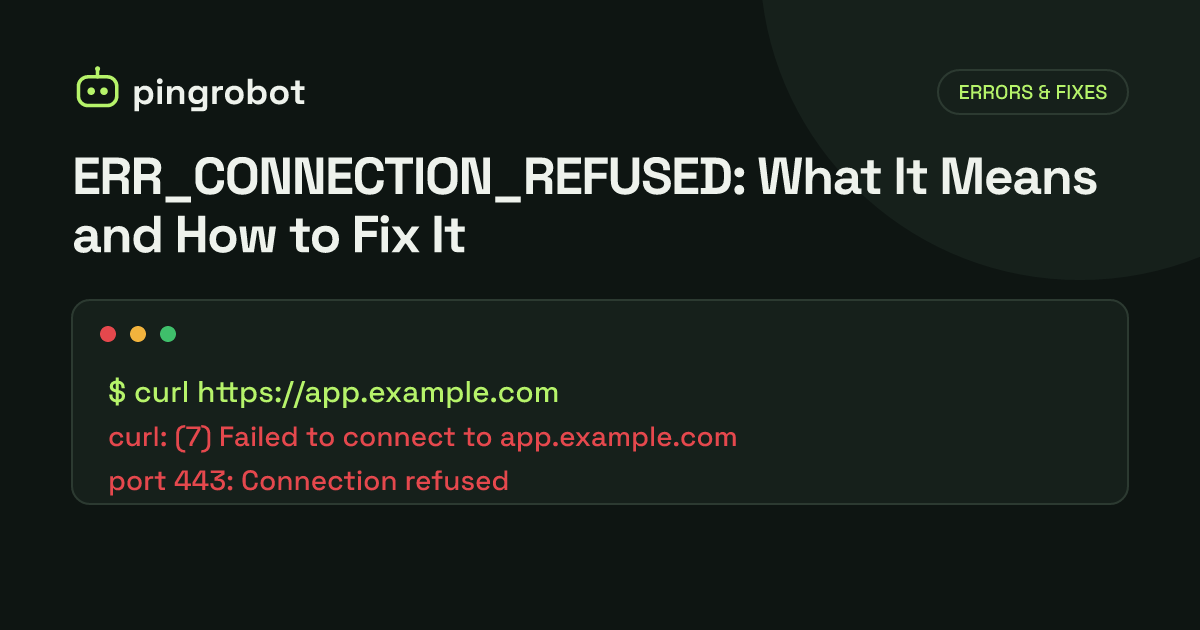
ERR_CONNECTION_REFUSED is Chrome's error for a connection that the other side actively turned down, usually with a TCP reset, because nothing is listening on that address and port or a firewall is set to reject it. Visitors should check proxies, VPNs, the hosts file and whether "localhost" means what they think. Site owners should confirm the service is running, that it listens on the right address and port, and that no firewall or container setup is blocking it.
ERR_CONNECTION_REFUSED is the error Chrome and other Chromium-based browsers show when they reached the server's address but the connection was actively turned down. The page says the site "refused to connect". In TCP terms, the browser sent a connection request and got a reset back: nothing was listening on that IP address and port, or a firewall was configured to reject the connection rather than ignore it. The fix is to find out which port the browser used, then check whether a process is listening on it and whether anything in between is rejecting traffic.
Firefox shows the same problem as "Unable to connect", and Safari says it "can't connect to the server".
What happens at the TCP level
Every HTTP or HTTPS request starts with a TCP handshake. The client sends a SYN packet to the server's IP and port, typically 80 for http:// and 443 for https://. Three outcomes are possible:
- SYN-ACK comes back. A process is listening, the handshake completes and the request goes ahead.
- RST comes back. The operating system on the other end says no one is listening on that port, or a firewall rule rejects the connection with a reset. Some reject rules answer with an ICMP "port unreachable" message instead, which the client's operating system also typically reports as refused. This is ERR_CONNECTION_REFUSED.
- Nothing comes back. The packet is dropped, the host is offline, or the route is broken. The browser keeps retrying until it gives up with ERR_CONNECTION_TIMED_OUT.
So a refusal is fast and specific: you reached a machine and it answered, just not the way you wanted.
How it differs from similar errors
| Error | What happened |
|---|---|
| ERR_CONNECTION_REFUSED | The connection was rejected before it opened. Nothing listening, or a reject rule. |
| ERR_CONNECTION_TIMED_OUT | No answer at all. Usually a dropped packet, an offline host or a firewall that silently drops. |
| ERR_CONNECTION_RESET | The connection was opened, then cut off with a reset partway through, often by the server process, a proxy or a middlebox. |
| DNS_PROBE_FINISHED_NXDOMAIN | The name never resolved, so no connection was attempted. See DNS_PROBE_FINISHED_NXDOMAIN. |
The distinction matters because a refusal tells you the network path and DNS are probably fine. You are looking for a missing listener or a rejecting firewall, not a routing problem.
Fixes for visitors
First, open the URL from another network, such as a phone on mobile data, or use the is-it-down tool. If it is refused everywhere, skip to the site owner section.
Check the URL and the port
A port in the URL, such as example.com:8080, must match a port the site actually serves. Also check http:// versus https://: some small sites and internal tools only listen on port 80, and the browser will be refused on 443.
Understand what localhost means
localhost and 127.0.0.1 always mean "this device". A link like http://localhost:3000 that a colleague sends you points at your own computer, not theirs. The same goes for opening a development URL on your phone. To reach a dev server from another device, use the computer's LAN address, such as http://192.168.1.20:3000, and make sure the dev server listens on all interfaces.
A related trap: localhost can resolve to the IPv6 address ::1 as well as 127.0.0.1. A server listening only on 127.0.0.1 may refuse a client that tries ::1. Using 127.0.0.1 explicitly in the URL removes the ambiguity.
Check the hosts file
An old entry pointing the domain at 127.0.0.1 sends the browser to your own machine, where nothing is listening.
- Windows:
C:\Windows\System32\drivers\etc\hosts - macOS and Linux:
/etc/hosts
Turn off proxies, VPNs and security software
A VPN or corporate network may route traffic through a gateway that rejects certain ports. Local security software and some firewalls can reject outbound connections. If Chrome is configured to use a proxy that is not running, you usually get ERR_PROXY_CONNECTION_FAILED instead, but disabling the proxy, VPN and filters one at a time is still a quick way to rule them out.
Fixes for site owners
1. Reproduce it with curl
curl -v https://example.com/
A refusal looks like this in the verbose output:
*   Trying 203.0.113.10:443...
* connect to 203.0.113.10 port 443 from 192.0.2.25 port 51438 failed: Connection refused
curl exits with code 7 ("Failed to connect"). The exact wording varies between curl versions, but the verbose line shows the IP and port that refused. Make sure that IP is really your server; if DNS points at an old host, you are debugging the wrong machine.
Then run the same test from the server itself:
curl -v http://127.0.0.1/
curl -v -k https://127.0.0.1/
If it works locally but not from outside, the problem is the bind address or a firewall. If it fails locally too, the service is not running or not listening on that port.
2. Check that something is listening
sudo ss -ltnp
This lists listening TCP sockets with the owning process. Narrow it to one port:
sudo ss -ltnp 'sport = :443'
A healthy nginx line looks like LISTEN 0 511 0.0.0.0:443 0.0.0.0:* users:(("nginx",...)). No line means nothing listens on 443. Pay attention to the local address:
0.0.0.0:443or[::]:443means all interfaces, reachable from outside.127.0.0.1:443or[::1]:443means loopback only. Outside clients are refused.
3. Check the service
sudo systemctl status nginx
sudo journalctl -u nginx --since "15 min ago"
Replace nginx with apache2, httpd, or your app's unit name. A service that failed to start often logs the reason, such as a syntax error or "address already in use". Validate config before restarting:
sudo nginx -t
sudo apachectl configtest
4. Check listen and bind addresses
In nginx, the listen directive decides the address and port:
listen 80;                 # all IPv4 addresses, port 80
listen [::]:80;            # IPv6 as well
listen 443 ssl;            # HTTPS on all IPv4 addresses
listen 127.0.0.1:8080;     # local only, refused from outside
In Apache, check the Listen lines in ports.conf (Debian and Ubuntu) or httpd.conf. A server that only has Listen 80 refuses HTTPS.
Application servers have their own setting. Many frameworks and dev servers default to 127.0.0.1, which is safe behind a reverse proxy but refuses direct connections. Set the host to 0.0.0.0 only when the app should be reachable directly; otherwise keep it local and let nginx proxy to it. If nginx itself is refused by the app, visitors see a 502 instead, as covered in 502 Bad Gateway.
5. Check the firewall
sudo ufw status verbose
sudo iptables -L INPUT -n -v --line-numbers
sudo nft list ruleset
Look for rules that cover your port with REJECT or reject. In ufw, deny drops packets silently and reject refuses them, so a ufw problem often shows up as a timeout rather than a refusal. Allow web traffic with:
sudo ufw allow 80/tcp
sudo ufw allow 443/tcp
Cloud firewalls, such as AWS security groups, GCP firewall rules or Azure network security groups, usually drop unmatched traffic, so they typically cause timeouts. If you see a refusal, the packet most likely reached the server and the cause is on the host. Still, confirm the cloud rules allow the port if you changed them recently.
6. Check Docker port publishing
A container's port is not reachable from outside unless it is published:
docker run -p 8080:80 my-app
docker ps --format "table {{.Names}}\t{{.Ports}}"
The PORTS column should show something like 0.0.0.0:8080->80/tcp. Two common mistakes:
- The port is not published, or the mapping is reversed. In
-p 8080:80, 8080 is the host port and 80 is the container port. - The app inside the container listens on 127.0.0.1. The mapping exists, but the container's loopback is not reachable from the host, so connections fail, sometimes as a reset or an empty reply rather than a clean refusal. Bind the app to
0.0.0.0inside the container.
With Docker Compose, check the ports: section and run docker compose ps.
7. Check for a wrong port after a deploy
Deploys are a frequent trigger. The app may now listen on a different port because an environment variable such as PORT changed, a new release uses another default, or a process manager started it with different arguments. Compare what ss -ltnp shows with what your nginx proxy_pass, load balancer target or Docker mapping expects. A brief refusal during a restart is also normal if the old process stops before the new one is listening; a graceful reload avoids it.
If you use a CDN or load balancer
Visitors then connect to the CDN or load balancer, not to your server. If the edge cannot reach your origin, the visitor usually gets an error page from the edge instead: Cloudflare shows a 521 when the origin refuses its connection. Test the origin directly with curl -v --resolve example.com:443:ORIGIN_IP https://example.com/ to bypass the edge.
Catching it early
A refusal is easy to detect from outside, which makes it a good fit for monitoring. An HTTP(S) monitor on your main URL fails the moment the web server stops accepting connections. For services that do not speak HTTP, such as a database, mail server or SSH, a TCP port monitor simply tries to open the port and alerts when it is refused or unreachable; see TCP port monitoring for which ports are worth watching. PingRobot runs both kinds of checks every minute on Pro or every five minutes on Free, re-checks failures from a second region, and alerts you by email or webhook, so a deploy that leaves the app on the wrong port gets noticed before customers start reporting it. For other causes of an outage, work through the website down checklist.
Start monitoring free — 10 monitors, no credit card.
Frequently asked questions
Is ERR_CONNECTION_REFUSED the same as the site being down?
Not always. The machine is reachable, because something answered with a refusal. What is missing is a program accepting connections on that port, or a firewall is rejecting them. The server may be fine while the web server process or one port is not.
Why does my site work on the server itself but not from outside?
Usually the service is bound to 127.0.0.1, which only accepts local connections, or a firewall allows loopback traffic but rejects the outside world. Check the listening address with ss -ltnp and change it to 0.0.0.0 or the public IP.
Why does http:// work but https:// is refused?
Only port 80 is open. Either the web server has no listener on 443, or a firewall blocks 443. Browsers go to 443 whenever you type https://, follow a redirect to HTTPS, or the domain uses HSTS.
Can a refused connection come from the visitor's side?
Yes. A hosts-file entry pointing the domain at 127.0.0.1, a local proxy or security tool that rejects the connection, or a URL with localhost in it opened on another device all produce the same error without anything being wrong on the server.
Why do I see 502 errors instead of ERR_CONNECTION_REFUSED?
When a reverse proxy such as nginx or a CDN sits in front of your app, the proxy is the one refused, not the browser. It turns that into a 502 page, or a 521 on Cloudflare. The cause is the same; the app behind the proxy is not listening.