DNS_PROBE_FINISHED_NXDOMAIN: What It Means and How to Fix It
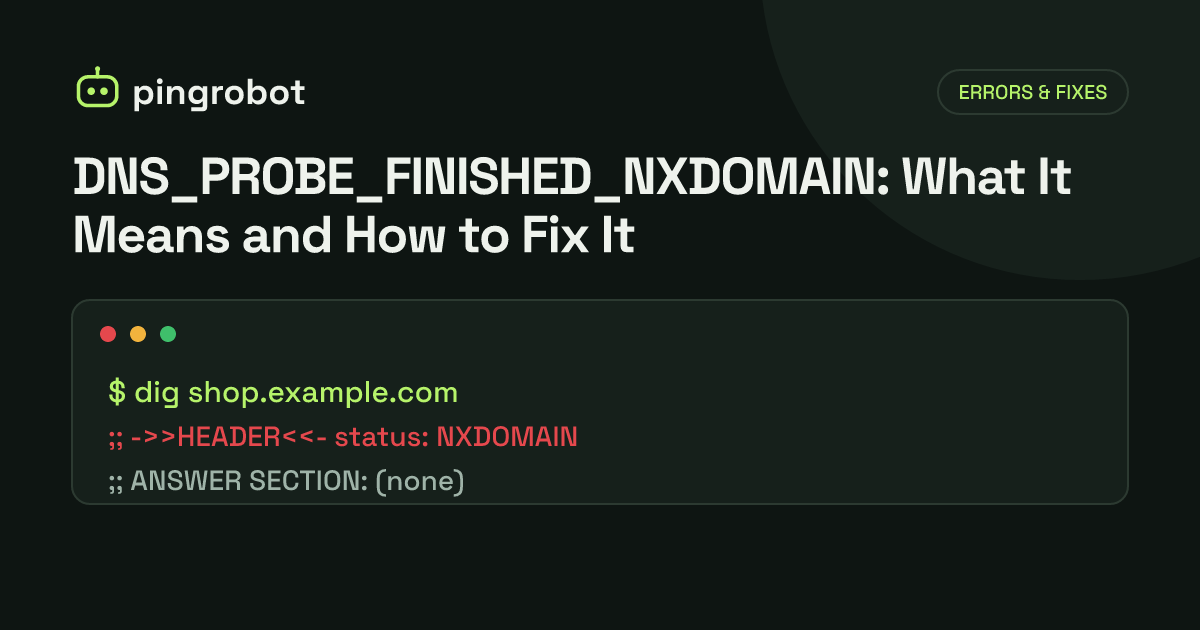
DNS_PROBE_FINISHED_NXDOMAIN is a Chrome error that means the browser could not turn the domain name into an IP address, most often because DNS answered that the name does not exist (NXDOMAIN). Visitors should check the spelling, try another network, flush the DNS cache and check VPN or hosts-file settings. Site owners should confirm the domain has not expired, the nameservers are correct and the A or CNAME records exist.
DNS_PROBE_FINISHED_NXDOMAIN is the error Google Chrome (and other Chromium-based browsers) shows when it cannot find the IP address for a domain name. NXDOMAIN is the DNS response meaning "non-existent domain": the resolver was asked for the name and reported that it does not exist. The cause is either on the visitor's side, such as a typo, a stale DNS cache, a VPN or a filtering DNS service, or on the site owner's side, such as an expired domain, wrong nameservers or a missing DNS record. Test the address on a different network first; that one step tells you which side to look at.
What the error actually means
Before a browser can load example.com, it asks a DNS resolver for the domain's IP address. The resolver either returns an address or an error code. The DNS specification (RFC 1035) defines response code 3, "Name Error", for names that do not exist; it is commonly called NXDOMAIN.
When the lookup fails, Chrome runs a quick diagnostic probe to check whether your DNS resolver works at all. "PROBE_FINISHED" means that probe completed, and "NXDOMAIN" means the resolver seemed to be working but could not resolve this particular name. If the probe had found your internet connection or DNS configuration broken, you would see a different code, such as DNS_PROBE_FINISHED_NO_INTERNET or DNS_PROBE_FINISHED_BAD_CONFIG.
Two things follow from that:
- The server was never contacted. This is not a 500 or 503 error; the browser never reached the web server. See HTTP status codes for errors that do come from the server.
- The problem is with the name, not the network. Something between the name you typed and the DNS records that should exist for it is wrong.
Other browsers show the same underlying problem with different wording, such as "Hmm. We're having trouble finding that site" in Firefox or "Safari can't find the server".
Step 1: find out whose problem it is
Open the same URL on a phone using mobile data, not your Wi-Fi. Or use an external check such as the is-it-down tool, which requests the URL from outside your network.
- Fails everywhere: the problem is with the domain's DNS. Jump to the site owner section.
- Works elsewhere: the problem is local to your device or network. Start with the visitor fixes.
Fixes for visitors
Check the spelling
The most common cause is the simplest. A typo, a wrong top-level domain (.co instead of .com) or a missing hyphen produces a name that genuinely does not exist.
Flush the DNS cache
Your computer and browser cache DNS answers, including failures. If the site was briefly broken or recently moved, a cached NXDOMAIN can outlive the actual problem.
# Windows (Command Prompt as administrator)
ipconfig /flushdns

# macOS
sudo dscacheutil -flushcache; sudo killall -HUP mDNSResponder

# Linux with systemd-resolved
resolvectl flush-caches
In Chrome, also open chrome://net-internals/#dns and click "Clear host cache".
Turn off the VPN, proxy or DNS filter
VPNs often route DNS through their own resolvers, and corporate networks may use internal DNS that does not know public names, or blocks some on purpose. Ad blockers and parental controls that work at the DNS level commonly answer blocked domains with NXDOMAIN. Disable them one at a time and retry.
Try a different DNS resolver
If your ISP's resolver is misbehaving, switching to a public resolver is a quick test. Common choices are Cloudflare (1.1.1.1), Google (8.8.8.8) and Quad9 (9.9.9.9). You can test without changing settings:
nslookup example.com 1.1.1.1
If that returns an address but your normal lookup does not, change the DNS servers in your network settings or router. Also check Chrome's own "Use secure DNS" setting (under Privacy and security), which may send lookups to a provider other than your system's.
Check the hosts file
The hosts file overrides DNS for specific names. An old entry left over from development work can send a domain nowhere.
- Windows:
C:\Windows\System32\drivers\etc\hosts - macOS and Linux:
/etc/hosts
Remove or comment out any line that mentions the domain.
Restart the router
Home routers often run a small DNS cache of their own. Restarting clears it.
Fixes for site owners
If the name fails from every network, the problem is in DNS itself. Work through these in order.
1. Confirm what DNS says
dig example.com A
Look at the status: field in the header. NOERROR with an answer section means the name resolves. NXDOMAIN means it does not exist. NOERROR with no answer means the name exists but has no A record. SERVFAIL means the lookup broke, often because of a DNSSEC problem or unreachable nameservers.
With nslookup, an NXDOMAIN looks like this:
nslookup example.com
** server can't find example.com: NXDOMAIN
Check both the bare domain and www, because they are separate names:
dig +short example.com A
dig +short www.example.com
2. Check that the domain has not expired
An expired, suspended or unpaid domain is a common reason a site that worked yesterday is now NXDOMAIN everywhere.
whois example.com
Look at the expiry date and the status lines. A status such as clientHold or serverHold means the domain is not published in DNS, which produces exactly this error. Renew the domain at your registrar, resolve any verification or payment issue, and turn on auto-renew. After renewal it can take some time before every resolver sees the domain again.
3. Check the nameservers
dig example.com NS +short
whois example.com | grep -i "name server"
The nameservers listed at the registrar must be the ones where your DNS records actually live. A frequent mistake is moving the domain to a new DNS provider, or adding it to a CDN, without recreating every record in the new zone first. You can ask a nameserver directly whether it has the record:
dig @ns1.your-dns-provider.com example.com A
To follow the whole resolution path from the root servers down, use dig +trace example.com.
4. Check the records
- The bare domain needs an A record (and AAAA for IPv6), or your provider's flattened CNAME or ALIAS record.
wwwneeds an A record or a CNAME to the bare domain or your host.- Subdomains such as
apporshopeach need their own record, unless you use a wildcard. - A CNAME that points to a name that does not exist also fails, so check the target.
5. Allow for propagation and negative caching
New records usually appear within minutes, but two kinds of caching can delay the fix:
- Positive answers are cached for the record's TTL.
- "Does not exist" answers are cached too. RFC 2308 says resolvers cache an NXDOMAIN for the lower of the SOA record's TTL and its minimum field. If someone looked up the name before you created it, their resolver may keep saying NXDOMAIN until that time passes.
Check your zone's values with dig example.com SOA. When planning a migration, create records before announcing a new name, and lower TTLs a day ahead of changes.
How monitoring helps
An external uptime monitor resolves your domain the same way a visitor's browser does, so when the name stops resolving, the check fails and you get alerted, often before customers notice. A few practical tips:
- Monitor both the bare domain and
www, because they can break independently. - Monitor important subdomains, such as
app.orapi., which are easy to miss during DNS migrations. - Treat an alert after a DNS change as a rollback signal. If checks start failing minutes after you switched nameservers, compare the old and new zones record by record.
- Do not rely on uptime checks for domain expiry. They will tell you once the domain has stopped resolving, not 30 days before. Turn on auto-renew, keep the registrar's contact email current, and put the expiry date in your calendar.
PingRobot checks your URLs every minute on Pro or every five minutes on Free, confirms failures from a second region, and alerts you by email or webhook. A DNS record monitor can also watch the A or CNAME record itself and tell you the moment it disappears or changes. For everything else that can take a site offline, use the website down checklist.
Start monitoring free — 10 monitors, no credit card.
Frequently asked questions
Is DNS_PROBE_FINISHED_NXDOMAIN my fault or the website's?
Test the same address on another device using mobile data. If it fails there too, the problem is almost certainly on the website's side, such as an expired domain or a missing DNS record. If it works there, look at your own device, network, VPN or DNS settings.
How long does it take for a new domain or DNS record to start working?
Often minutes, but resolvers that already cached a "does not exist" answer can keep returning it for as long as the negative-caching time in the zone's SOA record, which is commonly anywhere from a few minutes to a few hours.
Does this error mean the website's server is down?
No. The browser never got as far as contacting the server, because it could not find the server's address. The server may be running fine; the name simply does not point to it.
Why does the site work with www but not without it, or the other way round?
The two are separate DNS names and need separate records. Add an A record (or your provider's flattened CNAME or ALIAS record) for the bare domain and a record for www, then redirect one to the other.
Can an ad blocker or security software cause this error?
Yes. DNS-based filters, such as some ad blockers, parental controls and corporate security tools, can answer blocked names with NXDOMAIN on purpose. Try with the filter turned off or on another network.