How to Monitor a Shopify Store (Storefront, Checkout, Apps)
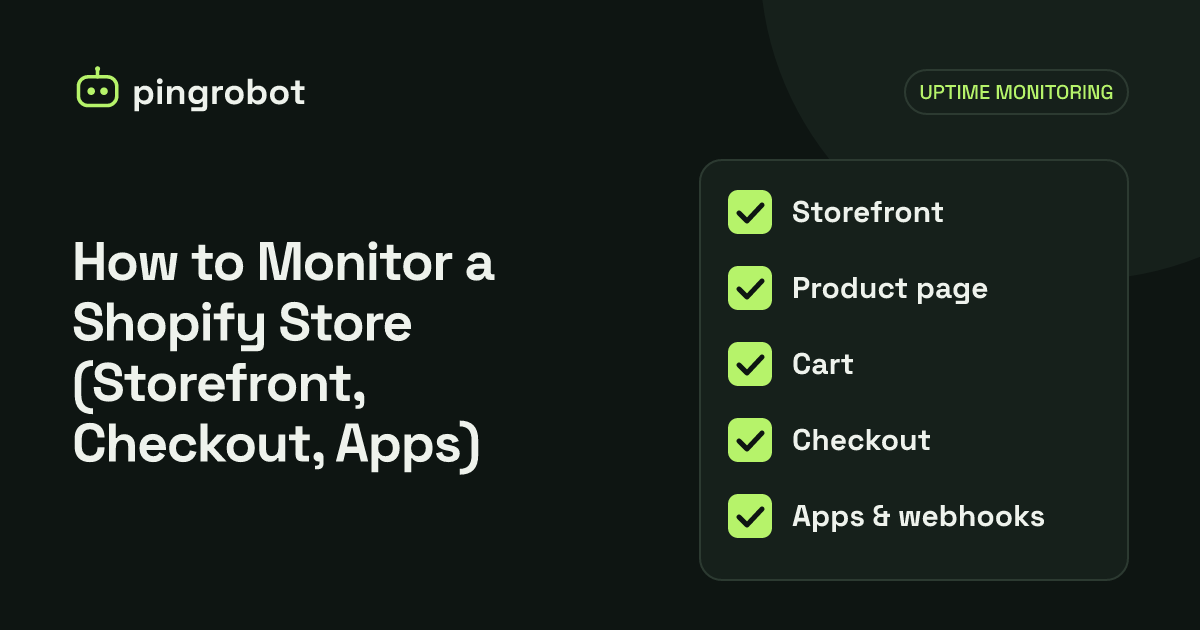
Shopify runs the hosting, so a Shopify store rarely goes down in the classic sense. What breaks is usually yours to fix - the custom domain's DNS, a theme or app change that empties a product page, a password page left on, or an external service your store depends on. Monitor the homepage on your own domain, a product page with a keyword check, the cart page, and any external endpoints your apps rely on.
To monitor a Shopify store, check what customers actually reach: your homepage on your custom domain, a product page with a keyword check, and the cart page, plus any external services your apps depend on. Shopify runs the infrastructure, so platform-wide outages are rare and announced on Shopify's own status page. The failures you are most likely to miss are the ones in your part of the setup: domain DNS, theme edits, apps, and store settings.
What Shopify handles and what you handle
It helps to split responsibility before choosing monitors.
| Area | Who runs it | What you should do |
|---|---|---|
| Servers, scaling, platform software | Shopify | Subscribe to Shopify's status page |
| Checkout and payment processing | Shopify (and your payment provider) | Watch platform status; test orders after changes |
| Your custom domain's DNS | You or your domain registrar | Monitor the store on the custom domain |
| Theme code and content | You (or your developer/agency) | Keyword-check key pages |
| Apps and their scripts | App developers, configured by you | Check that pages still render; monitor app endpoints you depend on |
| Store availability settings (password page) | You | Keyword check that fails if the password page appears |
| External systems (ERP, inventory sync, fulfillment) | You or your vendors | Monitor their endpoints or heartbeats |
Shopify's public status page at shopifystatus.com lists components including Storefront, Checkout, Admin, API & Mobile, Point of Sale and third-party services. If a monitor fails and the status page shows an incident, the problem is likely on Shopify's side and your job is to communicate with customers rather than debug. If the status page is green, look at your own setup first.
1. The storefront on your custom domain
Your first monitor should be an HTTPS check on your homepage at the address customers type, for example https://www.yourstore.com/.
This catches the problems that sit between the customer and Shopify:
- DNS records changed or removed. Shopify's manual connection instructions point the root domain's A record to
23.227.38.65and thewwwCNAME toshops.myshopify.com. If someone edits DNS at the registrar, for example while setting up email or moving providers, the store can disappear from your domain while it still works on themyshopify.comaddress. - Domain expiry. An expired domain stops resolving or shows a parking page. Uptime monitoring tells you after the fact; renewal reminders and auto-renew at your registrar prevent it.
- Redirect problems. If the primary domain setting changes, visitors may be redirected somewhere unexpected.
It is tempting to add a second monitor on the yourstore.myshopify.com address to tell domain problems from store problems. Check first how it behaves for your store with curl -sI https://yourstore.myshopify.com/: if it answers with a redirect to your custom domain, a monitor that follows redirects will fail together with the custom domain and tells you nothing extra. In that case, DNS checks by hand are the faster way to separate the two.
To check DNS by hand when something looks wrong:
dig +short yourstore.com A
dig +short www.yourstore.com CNAME
Compare the answers with the values in your Shopify admin under the domain settings, which are the authoritative source for your store.
2. A product page with a keyword check
A Shopify page can return HTTP 200 and still be broken for customers: a theme edit that removes the add-to-cart form, an app that injects broken markup, a product accidentally set to draft or unavailable in the sales channel, or a template that renders empty. A status-code check misses all of these.
Use a keyword monitor on a stable, best-selling product page. Choose text that:
- appears in the HTML the server sends, not only after JavaScript runs,
- belongs to the working page, such as the button label your theme uses for adding to cart or the product's title,
- does not change often (avoid prices, stock counts and sale banners).
Confirm the keyword is in the raw HTML before saving:
curl -sL https://www.yourstore.com/products/your-product | grep -c "Add to cart"
A result of 0 means the text is rendered by JavaScript, spelled differently in your theme, or translated. Pick another phrase. If your store uses multiple languages, monitor one language version explicitly.
3. Catch the password page
New Shopify stores start in private mode, where visitors see a password page instead of the store. Private mode can also be turned back on in the Online Store preferences, for example by someone preparing a relaunch or testing a theme. The password page usually loads fine with a 200 status, so a plain HTTP check will not alert.
The keyword check on your product page covers this, because the product text will be missing from the password page. If you want an explicit signal, some monitors can alert when a keyword is present; use text that appears only on your password page.
4. The cart page
The cart page at /cart is the last storefront page before checkout and is reachable without a session. A keyword check for a phrase from your cart template (such as the empty-cart message your theme shows) confirms the cart template renders. It is a reasonable proxy for the path into checkout.
5. What you cannot easily monitor: checkout
Checkout is the most important page and the hardest to check from outside:
- Reaching a checkout page requires a cart with items and a session, which a simple GET request does not have.
- Completing checkout requires a real payment.
- Checkout is run by Shopify, so most problems there are platform or payment-provider issues.
Practical approach:
- Subscribe to Shopify's status page so you hear about checkout incidents.
- Watch your payment provider's status page if you use one outside Shopify Payments.
- After theme changes, new apps or checkout customizations, place a real test order and refund it.
- Watch order volume. A sudden drop to zero orders during normal trading hours is often the first sign of a checkout problem nobody reported.
Do not script fake purchases against your live store. They create real orders, can trigger fraud checks with your payment provider, and are easy to forget about.
6. Third-party apps and external systems
Apps can affect your store in two ways: scripts that run in the storefront, and services that run outside Shopify.
Storefront scripts. A broken app script usually does not stop the page from loading; it breaks a widget, a reviews block or a currency selector. Uptime monitors are not designed to catch JavaScript errors. Check your storefront in a browser after installing or updating apps, and remove apps you no longer use.
External services. If your store depends on systems outside Shopify, monitor them directly:
| Dependency | How to monitor |
|---|---|
| A custom app or middleware you host | HTTPS check on its health endpoint |
| Inventory or ERP sync that runs on a schedule | Heartbeat ping after each successful run; see cron job monitoring with heartbeats |
| A headless frontend you host yourself | HTTPS and keyword checks on its pages |
| A webhook receiver for order events | HTTPS check on a health route of the receiver |
A sync job that silently stops is a common cause of overselling or wrong stock levels, and it produces no error page at all. A heartbeat monitor alerts on silence.
A starter monitor set
| Monitor | Type | Example URL | Catches |
|---|---|---|---|
| Homepage, custom domain | HTTPS | https://www.yourstore.com/ |
DNS, domain, redirect problems |
| A key collection page | Keyword | /collections/your-collection |
Empty or broken collection templates |
| Best-selling product | Keyword | /products/your-product |
Theme breakage, password page, unavailable product |
| Cart | Keyword | /cart |
Cart template errors |
| Inventory sync | Heartbeat | (job pings a URL) | Stopped or failing sync |
That is five monitors. PingRobot's free plan, for example, includes 10 monitors with 5-minute checks and email alerts, which leaves room for a second product page or your blog.
When a monitor fires
- Open the store on your phone using mobile data to rule out your own network.
- Check shopifystatus.com. If there is an incident, post a short note for customers and wait.
- If the platform is healthy and the error is a DNS or connection failure, compare your DNS records with the values in your Shopify domain settings.
- If the page loads but the keyword is missing, check for the password page, recent theme edits and app installs, and roll back the theme if needed.
- For anything else, the website down checklist walks through the general steps.
Start monitoring free — 10 monitors, no credit card.
Frequently asked questions
Do I need uptime monitoring if Shopify hosts my store?
Yes, though for different reasons than a self-hosted site. Shopify handles the servers, but your domain settings, theme, apps and store settings can still break the store for customers while the platform itself is healthy.
Can I monitor the Shopify checkout itself?
Not fully with a simple uptime check, because reaching checkout requires a cart session and completing it requires a real payment. Monitor the pages leading to checkout, watch Shopify's status page for checkout incidents, and place a real test order after significant changes.
Where can I see whether Shopify itself is having an outage?
Shopify publishes platform status at shopifystatus.com, with separate components such as Storefront, Checkout, Admin and Point of Sale. You can subscribe to updates there.
Should I monitor my myshopify.com address or my custom domain?
Your custom domain, because that is what customers use and it is where DNS and domain problems show up. A check on the myshopify.com address only adds information if that address serves the store rather than redirecting to your custom domain, so test it with curl first.